Linked Documents for Microsoft Excel

Your document workspace, built around Excel.

Link workbook cells to their supporting PDF sources, organize focused document reviews, and find information in your documents without losing the Excel context.

Free to install. An active Linked Documents SaaS subscription is required for licensed functionality. Eligible customers may use a free trial where available.

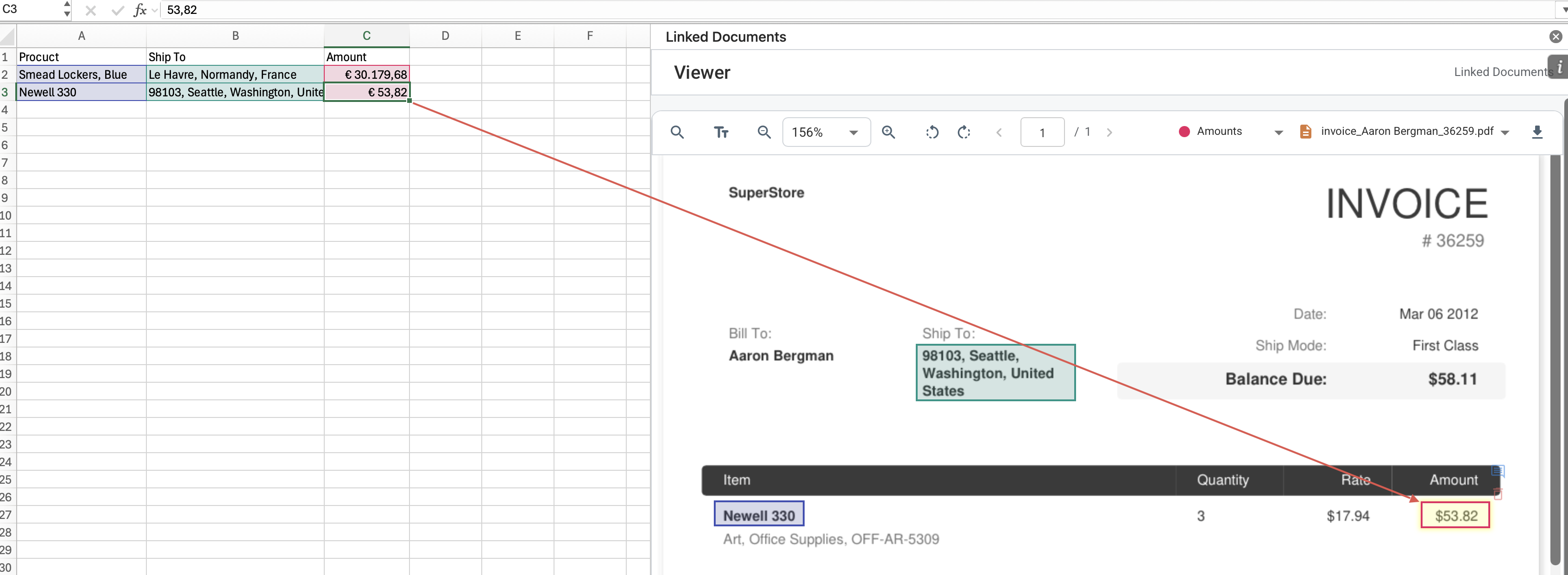
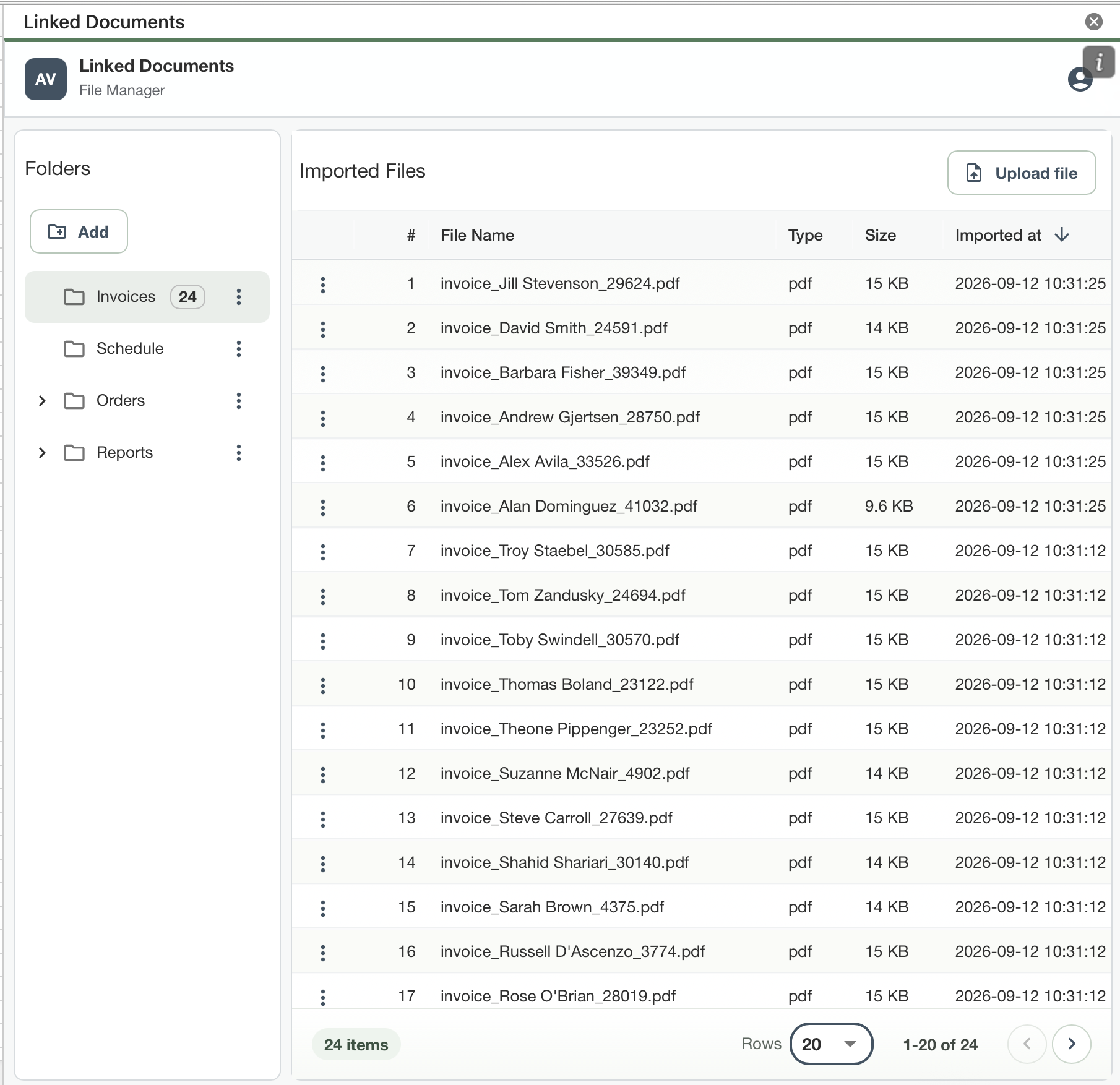
Linked Documents tools available from the Microsoft Excel ribbon Linked Documents interface showing a PDF workspace connected to Excel

One workbook. Three connected workflows.

Keep the documents close to the work.

Linked Documents makes Excel the working context for evidence, review, and retrieval—not simply the place where a document link happens to live.

How it works

From source document to workbook decision—and back again.

02 · Review & Collaborate

Turn a workbook into a focused review room.

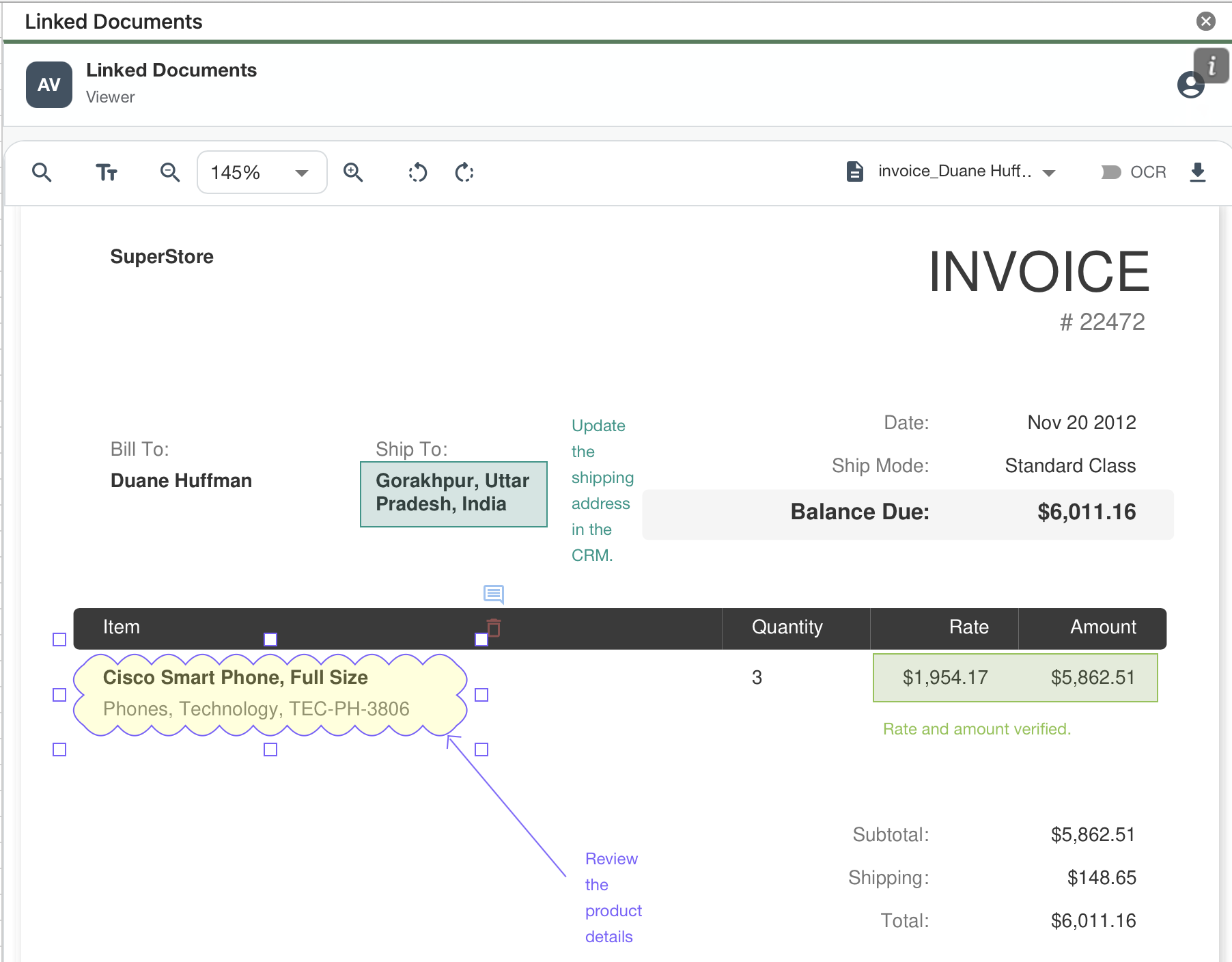
Bring the documents to be reviewed into one Excel workspace. Reviewers can open PDFs, add comments and graphical annotations, group them by purpose and use annotation lists to organise the results of the review. For example, they can create comment review summaries. This makes it ideal for engineering and document control workflows.

An annotation entry in a Linked Documents annotation list Jump to its markup ↓
The corresponding markup shown in its PDF document

03 · Search & Retrieve

Find the detail without leaving the workbook.

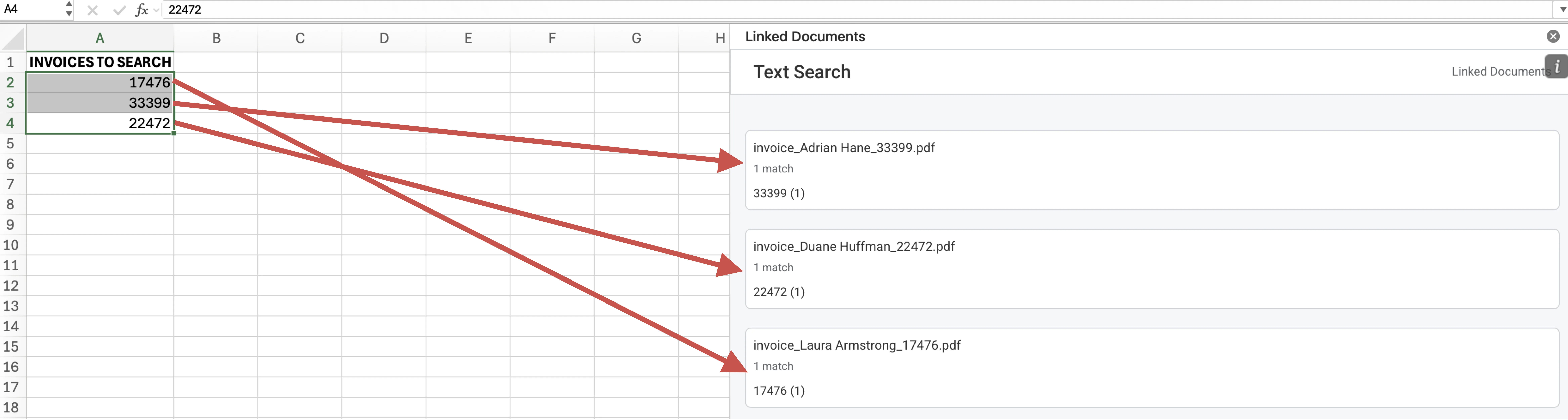
Run exact or pattern-based searches across imported PDFs, review the matches together, and open the relevant location in the source. The document set stays attached to the Excel context where its information is used.

Text search results across PDF documents in Linked Documents
Search across documents
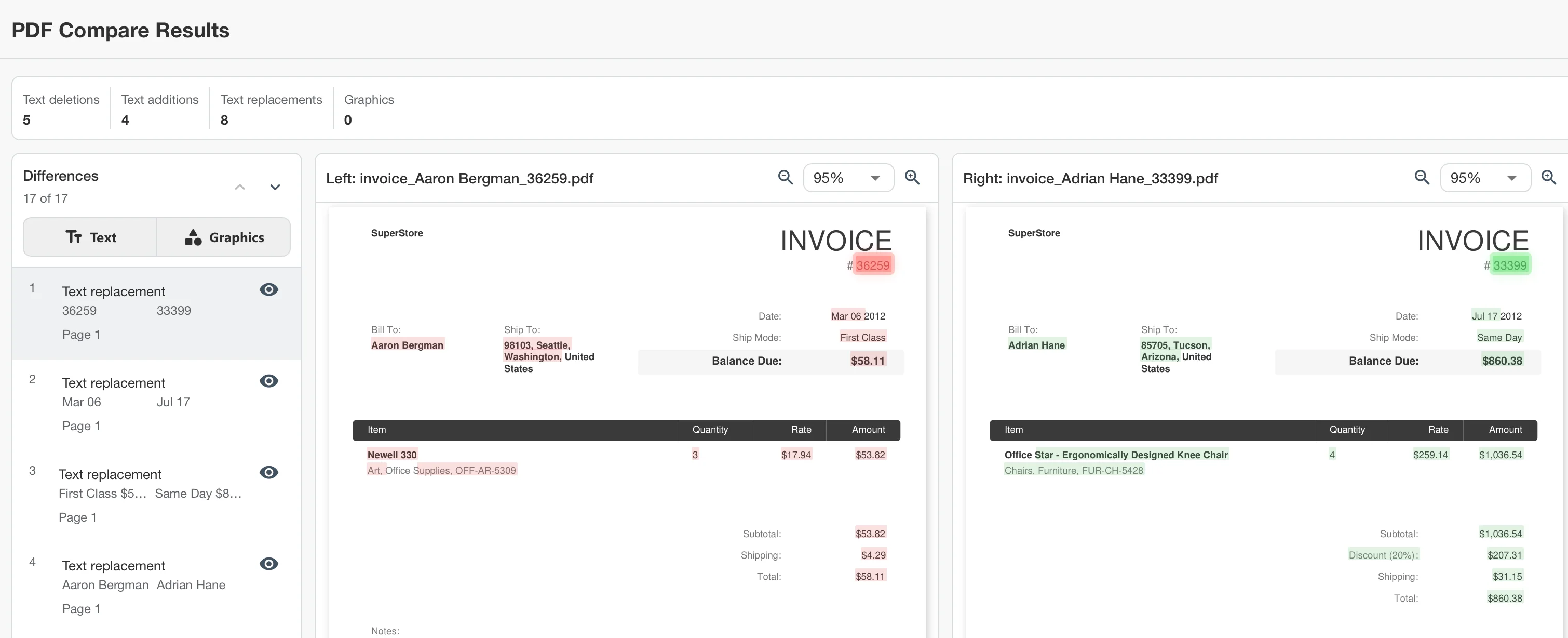
PDF comparison results in Linked Documents
Compare PDF versions

Supporting capabilities

The tools around the three workflows.

References & extraction

Create text or table references and extract recurring information from source documents into Excel.

PDF viewer & compare

Open supporting PDFs in the workspace and compare linked document versions during review.

Comments & annotations

Add shapes and comments, categorize annotations, and work with structured annotation lists.

Form extraction

Build rule-based workflows for recurring forms and document sets with consistent structures.

Built for document-heavy work

One workspace, adapted to the review.

Audit & accounting

Move from workbook value to audit evidence in a click.

Keep calculations and supporting financial documents connected during preparation and review.

Finance & controlling

Keep reporting figures close to their source material.

Retrieve supporting values from statements, forms, invoices, and reporting packages.

Engineering & construction

Organize fast, fit-for-purpose document reviews.

Assemble contractor documents, mark them up, and organize review comments around one workbook.

Get Linked Documents

Install the add-in, then activate your access.

Linked Documents has two Microsoft listings. The Excel add-in provides the product experience; the separate SaaS offer provides the subscription.

1

Excel AppSource

Install Linked Documents

Open the Linked Documents add-in listing and install it in Excel at no charge.

Open the add-in listing
2

Microsoft Marketplace

Start a trial or subscribe

Purchase the Linked Documents SaaS subscription separately. Eligible customers may use a free trial where available.

View the subscription
Subscription required

Linked Documents is free to install, but an active Linked Documents SaaS subscription is required to use the add-in’s licensed functionality. The subscription is purchased separately through Microsoft Marketplace.

About AV Software

Focused software for practical document work.

AV Software builds workplace tools for teams that manage documents, spreadsheets, and structured review steps in Microsoft 365.

Linked Documents is our live Excel add-in for keeping source evidence, document review, and retrieval in one working context.

Contact

Questions about Linked Documents?

For help with the Excel add-in, contact support@avapps.co. For subscription or team rollout questions, contact info@avapps.co.

Contact us